Make a design print-ready, with its listing copy
Turn a draft into a full-size print file, check it, and get an SEO title, tags and description.
Video · 1:46 · Recorded Sep 25, 2026
What you’ll learn
- Choosing a PNG, vector or 4K print file
- Reading the print check: resolution, transparency, spelling
- Editing the title, tags and description written for you
Transcript
Here's how to turn a draft into a print-ready file, check it, and get the listing written for you.
Open Designs, and click the draft you saved.
Make it print-ready turns your draft into a print file at the exact size, removes any background, and checks the text. There are three types to choose from.
PNG uses your draft exactly as it is, for just one credit. It's softer than vector on big prints.
Vector redraws your design as a vector file, which stays sharp at any size. That's why we recommend it for t-shirts.
And the 4K option fills posters and canvas all the way to the edges. Vector is already selected, so click Make print-ready.
This takes up to a minute. We'll skip ahead.
Your print file is ready. The print check shows its size in pixels and how big it prints sharply, that the background is transparent, and that the text is spelled right. It also screens for well-known trademarks.
Your listing is already written: an SEO title, tags, and a description, all following Etsy's limits.
Edit anything you like. Remove a tag with its cross, or type a new one and press Enter. Then save your changes.
Each part has a copy button, for pasting into Etsy or any other marketplace.
At the top, download the print file, or an export pack with the file and all your listing text. When you're ready to sell it, click Create product.
Next, let's turn this design into a product in your shop.
More tutorials
 1:22
Designs
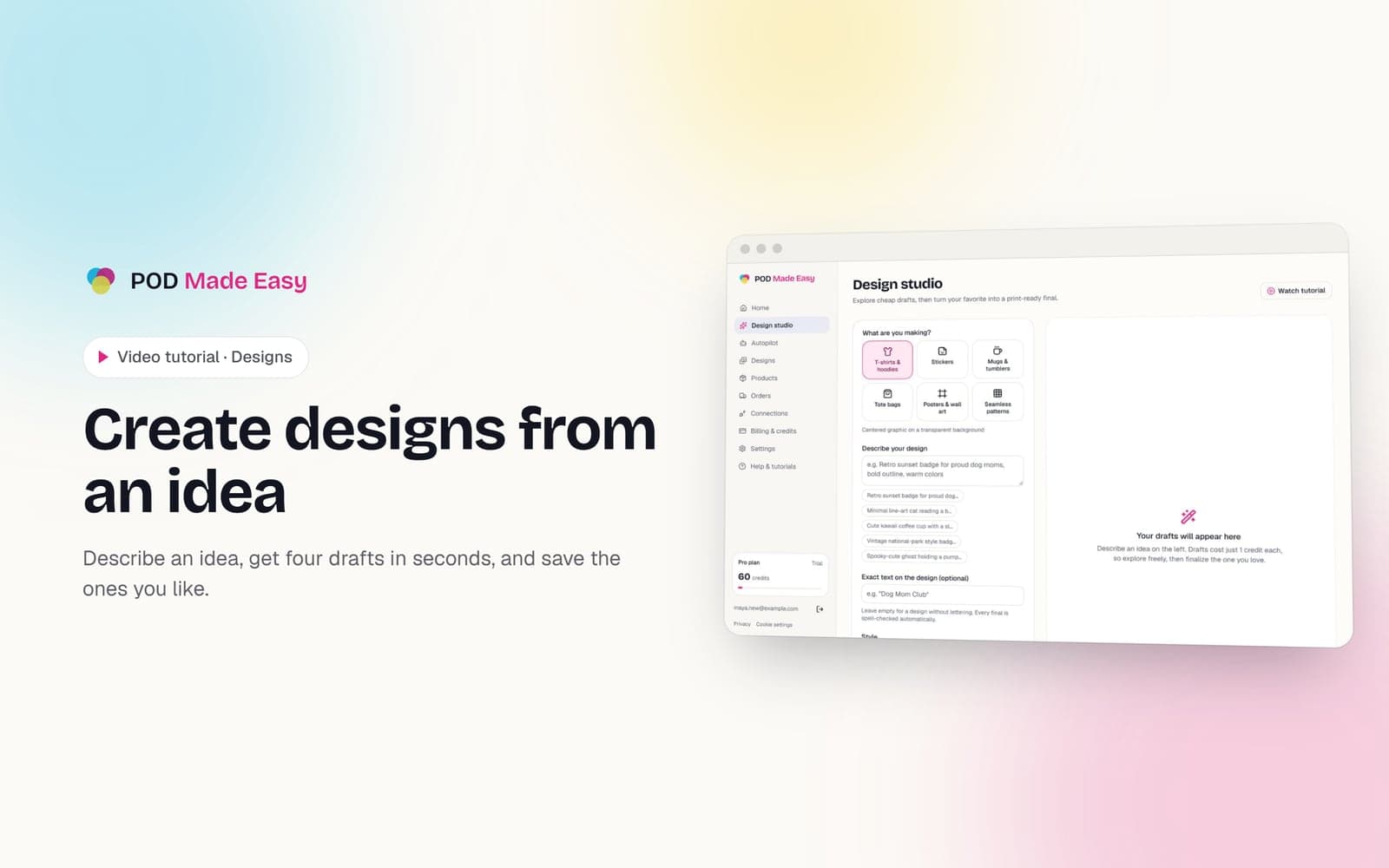
Create designs from an idea
Describe an idea, get four drafts in seconds, and save the ones you like.
 1:28
Getting started
Take the tour: your POD Made Easy studio
A quick look around: the setup checklist, every page in the sidebar, and how credits work.
 1:11
Getting started
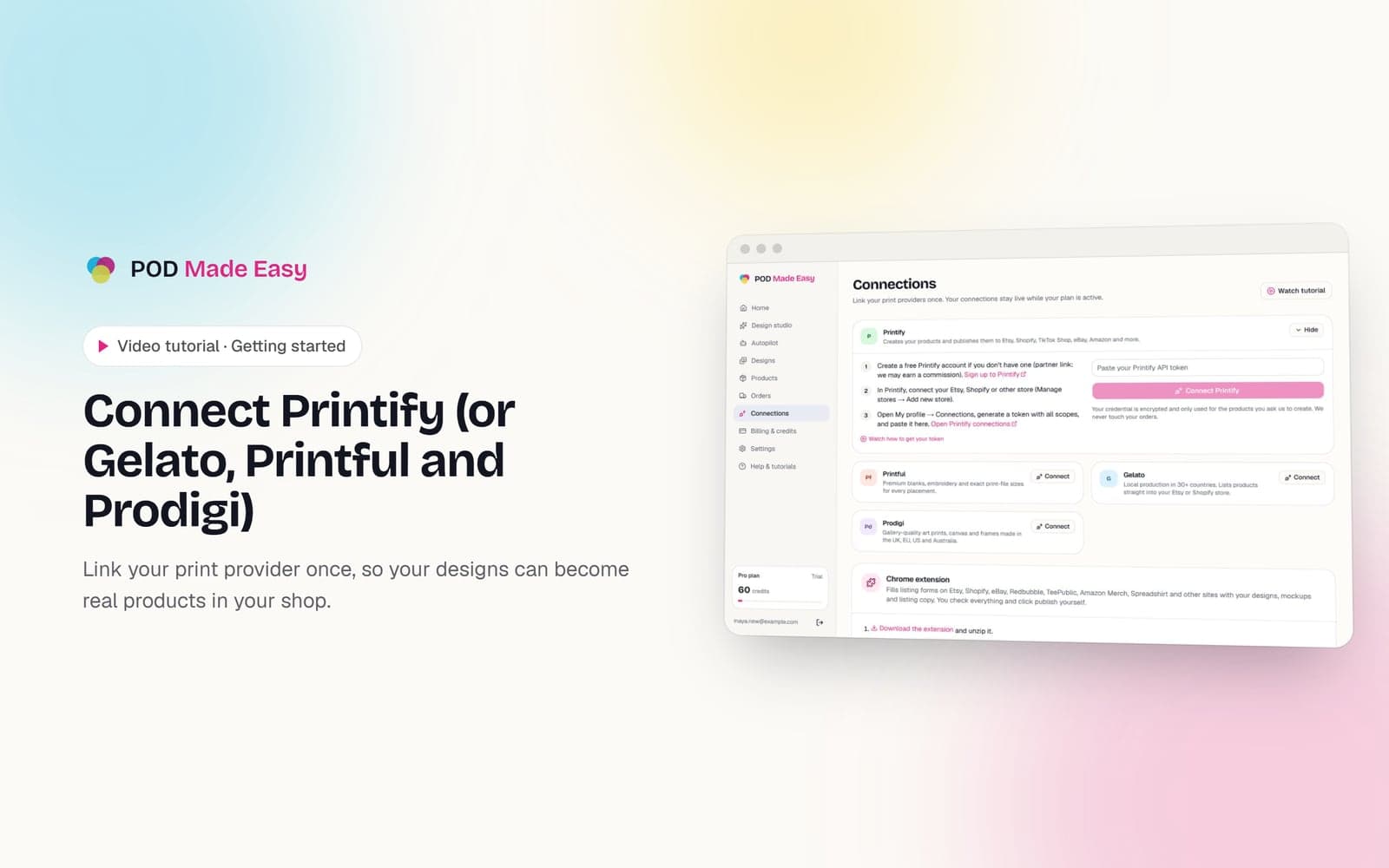
Connect Printify (or Gelato, Printful and Prodigi)
Link your print provider once, so your designs can become real products in your shop.
Guides on this topic
Design
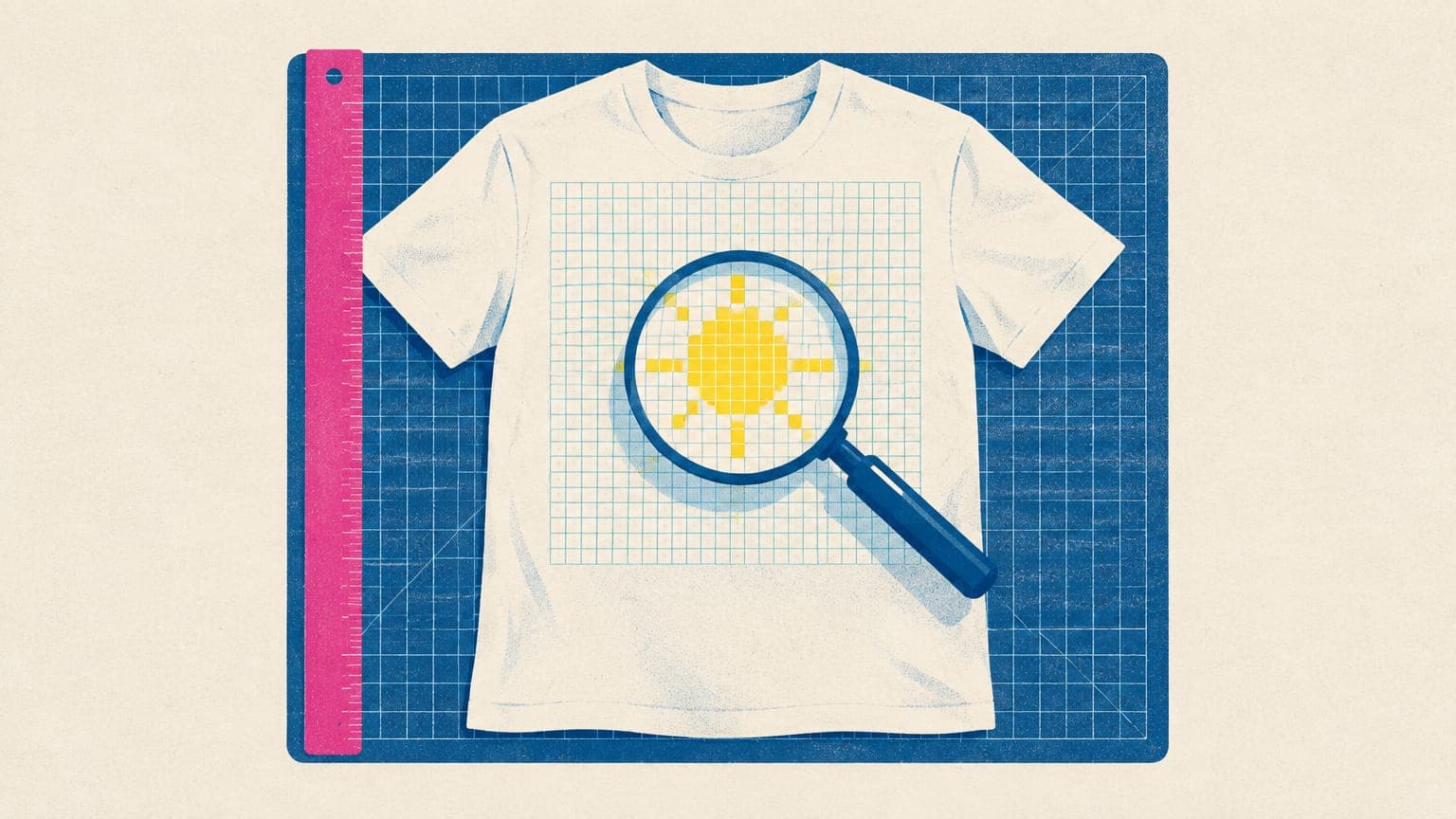
T-Shirt Design Size and DPI: The Exact Numbers for POD
The exact t-shirt design size for print-on-demand: 4500 × 5400 px at 300 DPI, why 150 DPI is the floor, print size math, plus stickers, mugs and posters.
Sep 24, 2026 · 12 min read
Design
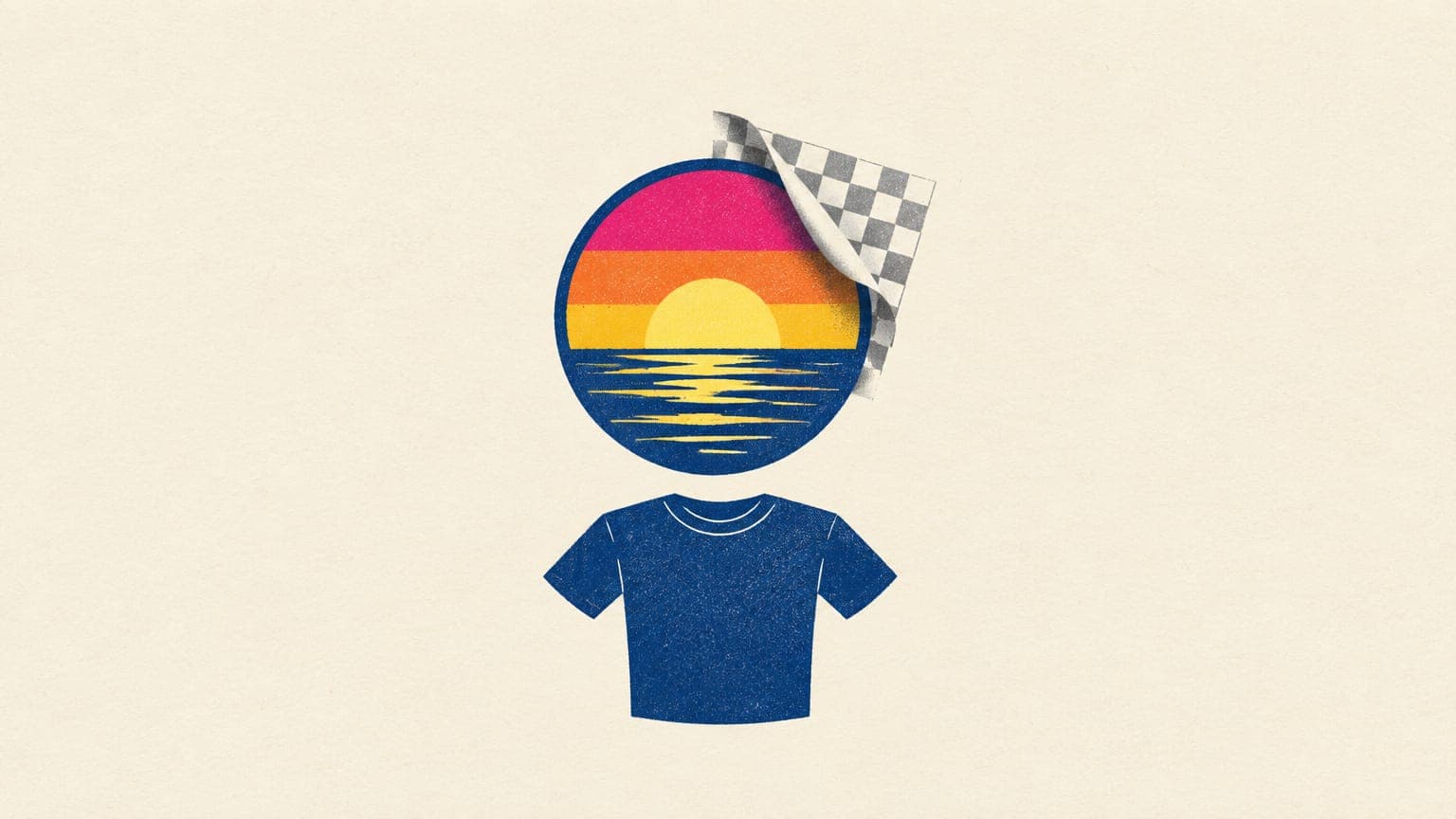
How to Make a Transparent PNG for T-Shirts (and Avoid Halos)
Make a transparent PNG for t-shirts that prints cleanly: remove white backgrounds, fix halos and soft edges, test on dark shirts and export it correctly.
Sep 24, 2026 · 11 min read
Etsy SEO
Etsy Tags for Print-on-Demand: 13-Tag Formula + Examples
How to choose all 13 Etsy tags for print-on-demand: the 20-character rule, multi-word phrases, what attributes already cover, and example tag sets for 3 niches.
Sep 24, 2026 · 11 min read
Your next best-seller is one sentence away.
Start your 7-day trial and publish your first product today.
Start free trial